Welcome to Ostinato
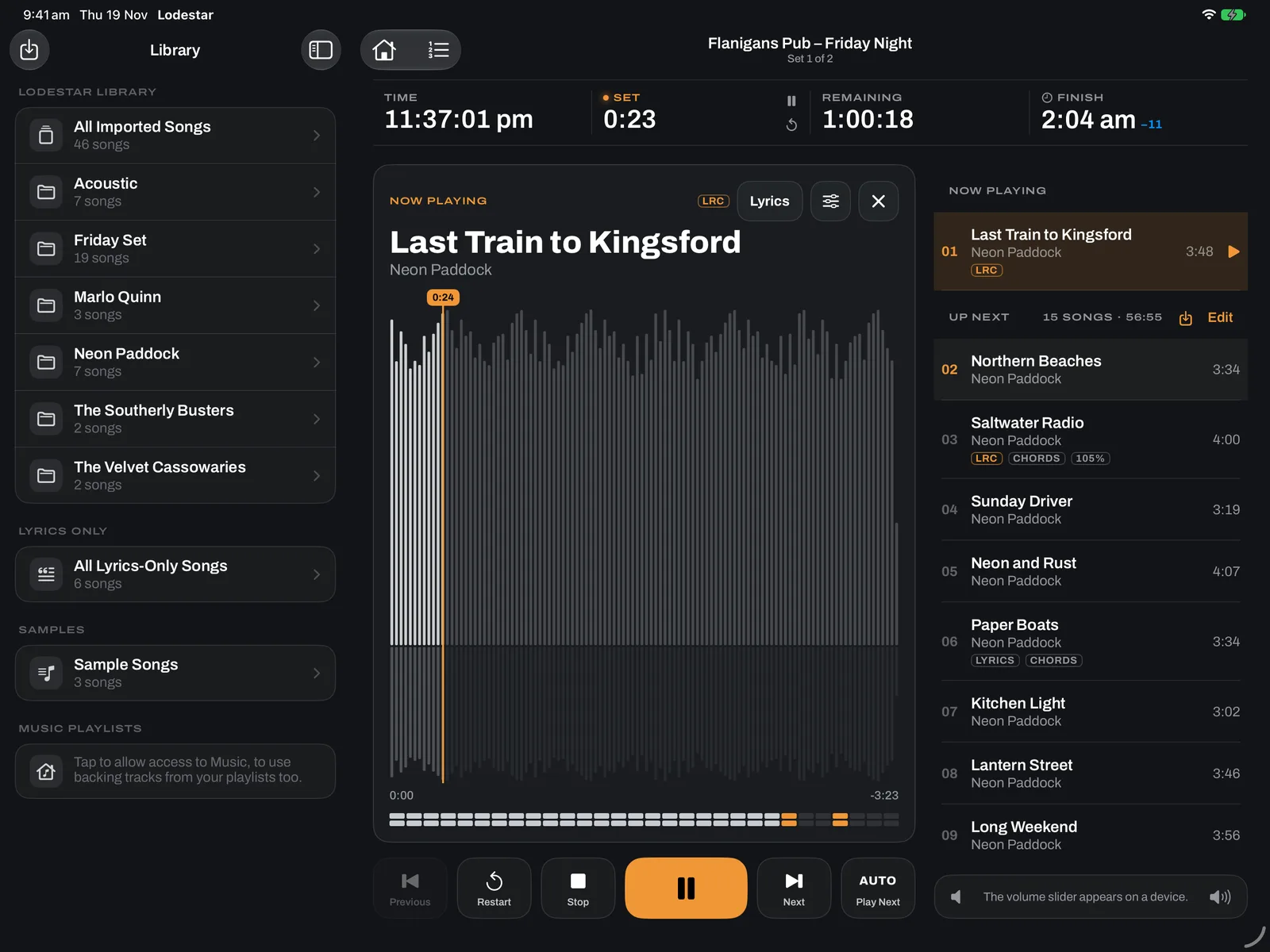
Ostinato plays your backing tracks on stage, with lyrics and chord charts that follow the song, a click in your ears, and a plan for the whole gig. This manual covers every screen, button and setting, and explains why you'd use each one.
Quick start
Five steps from a fresh install to your first song on stage:
- Open Ostinato and choose where your backing tracks are: Files and iCloud Drive for audio files, or Music Library for songs in the Music app. You can use both.
- On the Home screen, tap Songs, then Import › Import Songs…, and pick your audio files. (If you chose Files and iCloud Drive, the picker opens by itself the first time.)
- Back on the Home screen, tap Quick Set.
- Tap your songs in the order you'll play them. The first one goes straight to Now Playing.
- Tap the wide Play key. When a song ends, the next one is ready: tap Play again, or turn on Auto-Play Next.
- When you're ready for more, follow Your first five minutes, plan the gig in Shows, add lyrics and chord charts, and pair a click.
One library, every device
Your songs, lyrics, chord charts, clicks, shows and sets live in one folder in iCloud Drive, called Ostinato. Every iPhone, iPad and Mac signed in to the same Apple Account sees the same library. Plan a show on the Mac at home, and play it from your iPad at the venue. Any of your devices can also run the show on another one by remote control, and the Apple Watch is a remote for your iPhone.
Which page do I need?
| I want to… | Go to |
|---|---|
| Start from nothing | Your first five minutes |
| Get my songs into the app | Your song library |
| Play songs at a gig tonight | Running a show |
| Plan a gig with sets | Shows and sets |
| Practise a set | Rehearsing |
| Check everything before a gig | Gig-day checklist |
| Finish before the venue's curfew | Curfew and gig report |
| Play a song in another key or speed | Key, tempo and sound |
| Hear a click that the audience can't | Click, guide and outputs |
| Show lyrics that follow the song | Lyrics on stage, Importing lyrics, Syncing lyrics |
| Show chords over the words | Chord charts |
| Keep my hands on my instrument | Pedals and keyboard, Apple Watch, Shortcuts and Siri |
| Run the show on one device from another | Remote control |
| Prepare everything on a big screen | Mac: preparing songs |
| Play the show from a Mac | Mac: performing |
| Change a setting | iPhone and iPad settings, Mac settings |
| Look up a word | Glossary |
| Fix something that isn't working | Troubleshooting |
How this manual is laid out
Each feature starts with what it does and why you'd use it, marked with an orange line. Then come the steps, and a table of every button and setting on that screen. Buttons and settings are written like this: Play. The pages follow the order you'd usually set things up, from your library to the stage, then the Mac.